
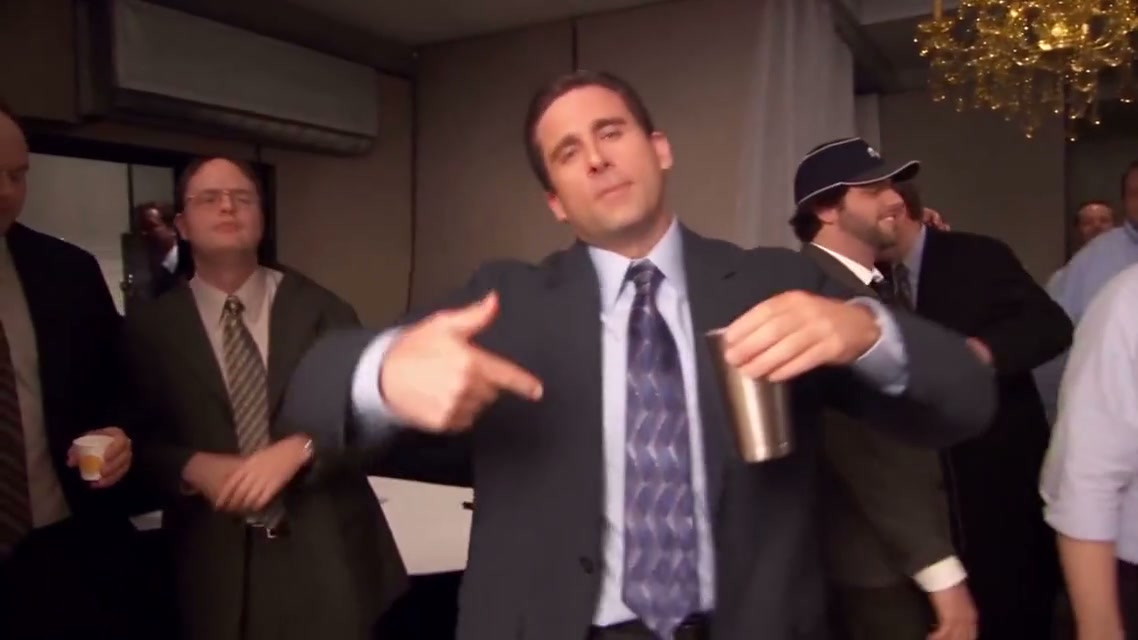
I've spent the past few weeks rendering Burning Bridges videos for friends, coworkers, and one very patient dog. If you haven't seen the trend: it's the chandelier party scene from Drake's "Burning Bridges" video — packed wood-panelled room, silver cocktail shaker, and that "Where she at?" move where the performer sweeps a hand over their eyes and scans the crowd. People are dropping themselves, their friends, and their pets into that scene with AI, and the results are genuinely funny.
This isn't an overview of every tool out there. It's the workflow I actually use now, the photo tricks that made a difference, and the four ways my renders failed before I understood why. If you're about to make your first one, this should save you a few wasted credits.
What the trend actually is (the 30-second version)
"Burning Bridges" is a track from Drake's 2026 album Iceman, and the moment everyone copies is from the official video: the lead steps out of a crowd under crystal chandeliers, points at the camera with a silver shaker in hand, straightens a collar, pours drinks for the guests, and then — the part that became a meme — puts a hand flat over their eyes and scans the room like they're looking for someone. The gesture blew up during the 2026 World Cup, when Drake did it on the stadium screen and Cristiano Ronaldo copied it right back.
The reason this trend translates so well to AI: it's one continuous handheld take with a short, repeatable gesture list. That's exactly the kind of motion a reference-video model can transfer onto a new face. Your photo decides who's in the video; the template handles the room, the crowd, the shaker, and the timing.
Here's the scene our own template recreates — the packed room, the chandelier, the crowd raising glasses:
The photo is 90% of the result
I learned this by rendering the same clip with three different photos of the same person. The renders weren't just different in quality — two of them looked like different people.
What worked:
- Front-facing, sharp, decent light. Sounds obvious, but a slightly blurry party selfie gave me a lead whose face drifted by the halfway mark. A clean phone portrait held identity the whole way through.
- Show the outfit you want to keep. The clip keeps the clothes from your photo — glasses and hats too. One friend sent a tight face crop and the model invented a jacket for him. If you want the collar-straightening move to land, send a photo with a collar.
- Head-to-waist or full body. Face-only crops lose the torso, and the shaker gestures get weird when the model has to guess where the arms are.
- One person per photo. I tried cramming two people into one shot for a duo version and the model blended their features. Two separate photos, two separate slots.
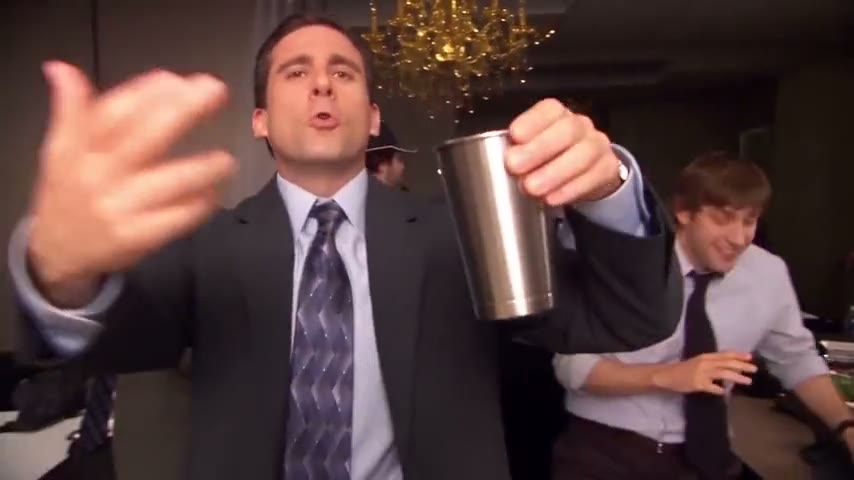
To make it concrete, this is the kind of frame that works as a reference — a clear front-facing subject, the shaker hand visible, and enough of the room around him for the model to place the scene:
And the photo that everyone asks about: yes, pets work. The dog render had him standing upright at the party, shaker in paw, doing the eye-cover on cue. It's absurd and it's great.
One warning before you get creative: don't try celebrity photos. I'll explain why in the failures section — it's the mistake that took me longest to diagnose.
My actual workflow (three steps, about five minutes)
I use our own Burning Bridges AI template, so I'm biased, but the flow is the same shape on every template tool worth using — the difference is mostly in what happens when something goes wrong:
- Upload the lead photo. This person becomes the performer — face, hair, outfit, everything visible in the shot.
- Optionally add a second photo. For duo versions the template supports a second cast member. Any slot I leave empty gets filled by the template's default cast, which is fine for background people.
- Generate, preview, download. A render finishes in a few minutes. I check the face holds, check the shaker stays in one hand, and if it's good, download. Results also land in my generation history, which has saved me twice when I closed the tab too early.
No prompt writing at this stage. The template carries the scene and choreography. When I tried pasting long prompts into raw video models instead, I got generic party dancing that skipped the eye-cover entirely — the packaged template exists because someone already did that debugging for you.
This is the actual template preview I start from — watch it once and you'll recognize every move the model is going to recreate:
Which model I render with (and what I saw in testing)
This is the part nobody else seems to write about. The same template, same photo, three different model families — three noticeably different results and three very different failure modes.
| Model | Duration / Quality | Motion reference | My take |
|---|---|---|---|
| MiniMax H3 | 4–15s · 768P/2K | Reference video + photos | My default now. Fastest good-looking results, and it tolerated every source I threw at it. |
| Seedance 2.0 | 4–15s · 720p | Reference video + photos | Transfers the choreography most faithfully. One render got blocked on audio copyright — more below. |
| Gemini Omni Flash | 3–10s · 360p–4K | Photos only | Sharpest identity fidelity at 1080p+, but it refused every video reference and has a strict face policy. |
Three things I only learned by burning renders:
- Google-based models reject celebrity faces, and the error message won't tell you that. I tried seeding a render with a movie-still photo — the task failed with a bare "invalid argument" that looked like a bug. A clean re-encode of the same photo failed identically. A photo of a regular person sailed through on the first try. That's a content policy, not a glitch: these models refuse recognizable public figures, and no prompt wording works around it.
- The reference video matters less than your photo. For the photo-driven path, the template's reference clip only defines choreography and camera. My best results came from a great photo with default settings, not from fiddling with motion settings.
- Reference files must be publicly reachable. When I tested raw API calls outside the template, a reference URL that needed any kind of authentication failed with a download error before generation even started. Inside the template this is handled for you — uploads land on the platform's own storage.
If you're just here for the clip: default model, one good photo, generate. New accounts can pick up credits here — failed renders get refunded automatically, so a bad attempt costs you time, not money.
The four ways my renders failed (and the fixes)
Worth reading even if you never hit these — two of them look like platform bugs but aren't.
- "Invalid argument" on a perfectly good-looking photo. This was the celebrity-face rejection described above. My first instinct was to re-encode the image, thinking the file format was the problem — I even rebuilt the JPEG from scratch with clean metadata. Same failure. Swapped in an ordinary photo of a friend: first-try success. If your render fails with a vague 400-type error, check whose face is in the reference before you blame the tool.
- Blocked for "copyright-restricted audio." One Seedance render died with a message about generated audio matching restricted content. The cause: the reference clip carried the original soundtrack, and the copyright filter caught it. Fix: use a template that handles audio licensing for you, or strip the audio from your reference clip and add the song in TikTok/Reels afterward — which is what you should be doing anyway (next section).
- The shaker switched hands mid-clip. Classic motion-transfer artifact. In my raw-prompt experiments the cup jumped from the left hand to the right at the halfway point. Naming the hand explicitly ("holds the silver shaker in their LEFT hand") fixed it. Templates bake this in; if you go DIY, state the hand.
- The "Where she at?" move covered the whole face. The signature move is a hand over the eyes — my first attempts covered the mouth too, which killed the lip-sync on the best line of the clip. "Hand over the eyes, mouth visible" is the phrasing that fixed it in prompts. Again: templates get this right by default.
Posting it: what I do with the finished clip
- Vertical wins. 9:16 fills the screen on TikTok, Reels, and Shorts. Every clip I've posted horizontal underperformed the vertical cut of the same render.
- Add the official sound inside the app. My renders ship with a generic track. The trend's audio works best when you add "Burning Bridges" from the platform's own sound library after upload — it also ties your clip to the trend page, which is where the discovery happens. Lower the clip's own audio if both are playing.
- Consent still matters. I only render people who agreed to it, and the friend whose face I used in tests got veto rights on the final cut. It's a fun trend; it stops being fun when someone's face ends up somewhere they didn't sign up for.
- Speed beats polish. Every trend template I've watched gets recycled within a week or two. A decent render posted while the sound is climbing beats a perfect one posted after it peaks. My best-performing clip was the second attempt, not the fifth.
Written October 10, 2026, based on my own renders on the ViralReel Burning Bridges template. Trend background (album release, World Cup moment) comes from public write-ups — double-check those details if you're citing them somewhere that matters.