
Short answer: pick the Vossi Bop Dance AI Template, upload one clear photo, keep the fixed 10-second 9:16 settings, and press Generate. The AI animates your person doing the Vossi Bop in the dawn Westminster Bridge shot, and you download the finished MP4 a few minutes later.
What You Need Before You Start
Everything on this list is free to prepare:
- One clear photo of the person you want to animate — full body visible, well lit, one person per photo. A photo of yourself or someone who agreed to be in the video. Do not upload minors, celebrities, or photos you do not have permission to use.
- A ViralReel account signed in on the browser.
- Credits for the render. ViralReel does not offer free credits — rendering is pay-per-credit, and the exact cost for your chosen settings shows under the Generate button before you start. See the pricing page for credit packs and monthly plans.
Step 1 — Open the Vossi Bop Dance AI Template
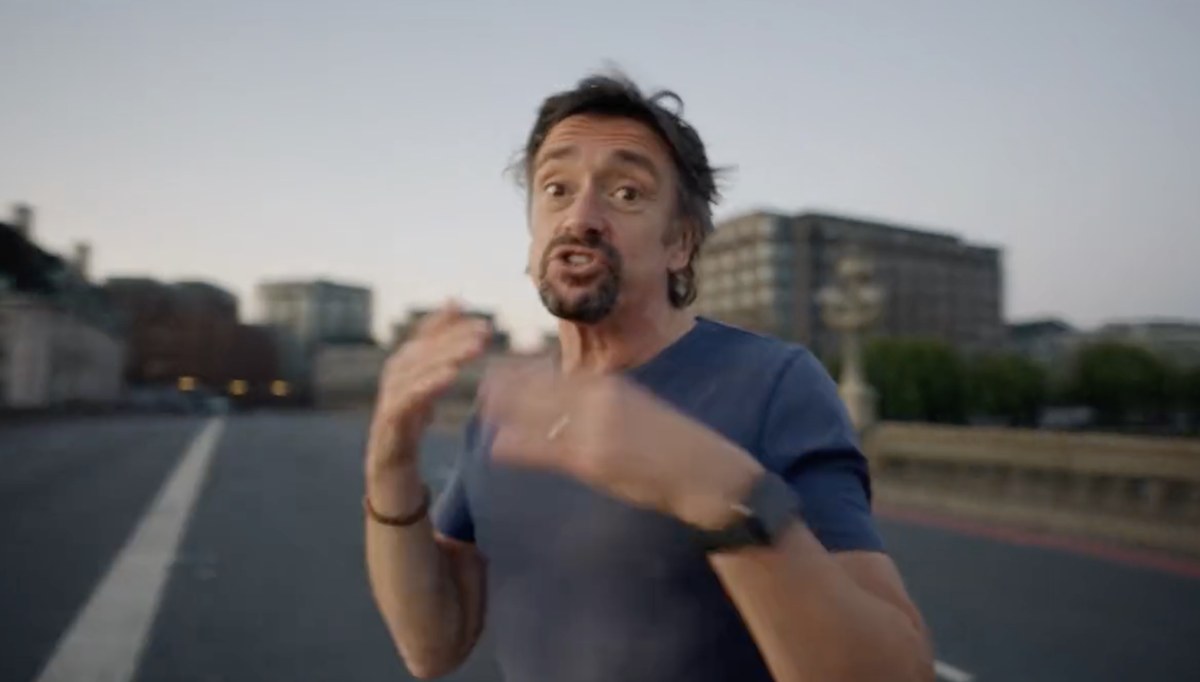
Open the Vossi Bop Dance AI Template. The page loads the generator right in the hero, preloaded with one of the eight bridge sets. Each set is the same dawn Westminster Bridge scene — empty road, Big Ben on the right, the camera circling — with a different sample dancer. Click any card in the Template Preview section to switch sets before you generate.
Step 2 — Upload Your Photo
The generator shows one upload slot labeled "Your photo". The example image inside the slot — the dancer from the Angry Ginge clip — shows the target: one person, full body, clearly lit, standing free of crowds.
What works best:
- Full-body shot, from head to feet. The Vossi Bop moves the whole body, and a cropped torso bops badly.
- Good lighting and sharp focus, so the AI can keep the face, hair and outfit recognizable.
- A plain or simple background. Crowds, pets and busy rooms confuse the subject detection.
- No sunglasses covering the face, no heavy filters.
Step 3 — Choose Your Video Settings
The template has fixed, trend-accurate settings:
- Ratio: 9:16 — the vertical shape TikTok, Instagram Reels and YouTube Shorts use.
- Length: 10 seconds — the only duration option, matching the bridge clips in the trend.
- Resolution: pick 480p for the cheapest test, or 720p/1080p for a cleaner export.
Read the credit cost under the Generate button. It updates with your settings, so there are no surprises after the render.
Step 4 — Generate Your AI Dance Video
Press Generate. The upload takes a few seconds, then the model queues up. Most renders finish in a few minutes; the progress bar shows where you are. Keep the window open while it runs.
If a render fails because of a system error, the credits are refunded automatically — check your generations list for the result and status.
Step 5 — Download and Share
Preview the finished clip in the generator, then press Download to save the watermark-free MP4. To post it:
- Upload the MP4 in TikTok, Reels, or Shorts.
- Add the "Vossi Bop" sound from that app's own library — ViralReel does not license Stormzy's song, so the platform library is the right way to use it.
- Turn on the AI-generated label the platform offers.
Tips for Better AI Dance Results
- Use a clear, sharp photo — AI cannot invent detail that a blurry photo never had.
- Keep the subject visible from head to feet.
- Avoid blurry or heavily edited images; heavy filters distort faces during motion.
- Follow the template's image requirements (one person, full body, simple background).
- Review the generated video before sharing — if the face drifts, try a more front-facing photo.
Frequently Asked Questions
How do I create a Vossi Bop dance video from a photo? Open the Vossi Bop Dance AI Template, upload one clear photo, and press Generate. The result is a 10-second 9:16 MP4 you can download.
Do I need video editing skills? No. The template handles the whole dance — the bridge, the camera move and the moves stay fixed, so there is nothing to cut or keyframe.
What type of photo should I upload? A clear, well-lit, full-body photo of one person. Avoid blurry images, complicated backgrounds and partially hidden subjects.
Can I use a cartoon character? Illustrated and cartoon-style characters can work if the character has a clear full body. Results depend on the image and the model — preview before posting.
What if my AI dance video looks distorted? Try a larger, sharper, more front-facing photo, and pick a higher resolution. If a render fails on a system error, the credits come back automatically.
Can I download my generated video? Yes. Every finished render downloads as a watermark-free MP4 from the generator or from your generations list.
Create Your Vossi Bop Dance Video
The trend is still climbing — open the Vossi Bop Dance AI Template, upload one photo, and get your bridge dance in minutes. Curious where the dance came from first? Read What Is the Vossi Bop Dance?